Screens Before Code: How Prototyping Cuts App Revision Costs
Seeing and editing real screens before anything is built is the cheapest way to get an app right. What to decide in a prototype, the common traps, and how to turn a prototype into a working app.
· 6 min read
Key takeaways
- A prototype is the real screens before they work. Its job is to be looked at and changed.
- When you catch "that's not what I meant" before development, the fix is one screen instead of a rebuild.
- Plans everyone agreed on in writing often look different on a screen. Missing screens and awkward flows show up right away.
- fingr lets you edit the screen design first, then builds the real app to match it.
Words and screens tell different stories
"Customers pick from the menu and order; the owner confirms." In a planning doc that's one line. Draw it, and the questions pour in:
- Are menu items big photos or a dense list?
- Where do customers choose options like size or extra toppings?
- What do they see right after ordering?
- How does the owner find out a new order came in?
Everyone nodded at the sentence. The screens reveal that everyone imagined something different. Find that out before development and you edit a screen. Find it out after and you're tearing apart a feature that already works.
When you find out decides what it costs
The same change takes very different amounts of work depending on when you make it. Take "let's skip accounts and just ask for a phone number at checkout."
| When you change it | What has to change |
|---|---|
| During planning | One sentence |
| During the prototype | Remove the sign-up screen, add a phone field to checkout |
| After development | Sign-up and login, how customer data is stored, how customers find past orders, the customer list in the admin area, notification emails |
Changes after development touch the parts you can't see (data and permissions) more than the parts you can. That's why they're expensive. A prototype pulls those changes up into the middle row.
What to settle in a prototype
Screens and flow
Which screens exist and how people move between them. Split them into customer screens (home, list, detail, order or booking, my history) and owner screens (new orders, customer list, settings). Missing screens become obvious.
What each screen shows
What's biggest on the home screen, and what the buttons actually say. "Book a table" beats "Submit," and "Accept order" beats "OK." Specific labels confuse fewer people.
Color, type and feel
One brand color and one font go a long way toward making the app feel like yours. A bakery's app and a law firm's app shouldn't feel the same.
How it looks on a phone
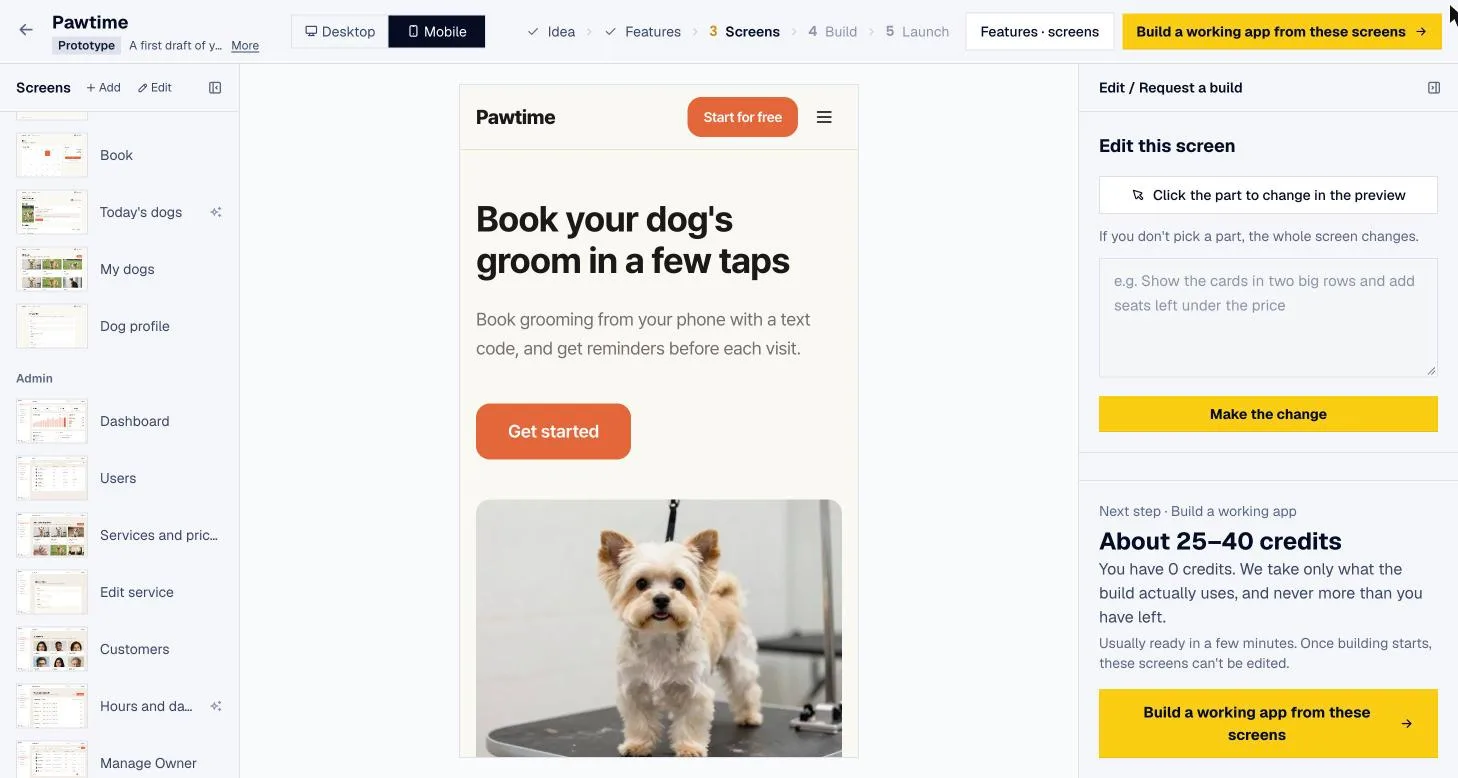
Most of your customers will open it on a phone. Check that buttons are big enough for a thumb and text doesn't get cut off.
Who should see the prototype?
Don't review it alone. Whoever built it already knows where to tap, so they can't spot the confusing parts.
- Two or three real customers. Hand them your phone and say only "book an appointment." Wherever their thumb hesitates is what needs fixing. If you feel the urge to explain, the screen isn't doing its job.
- The staff who'll run it. Show them the owner screens, not the customer ones. Questions like "where do I see new bookings?" or "who can cancel?" tell you what's missing.
- Partners, investors or a developer you might hire. A handful of screens gets everyone picturing the same thing far faster than a written plan.
The feedback you get is concrete: "I can't find this button," "why does this screen exist?" You rarely hear that from people reading a document. And acting on it still costs just one screen.
Two prototype traps
1. Stopping at a pretty picture. Even a carefully drawn design gets reinterpreted the moment it's handed to a developer. Colors drift, spacing changes, and you spend more time matching the two. The best prototypes flow straight into the real app.
2. Trying to decide everything in the prototype. The prototype is for overall direction and screen structure. Agonizing over tiny button color differences just delays launch. You can still adjust details after the real app exists.
With fingr: edit the screens, get that exact app
fingr puts this step right in the middle of the app-making flow.
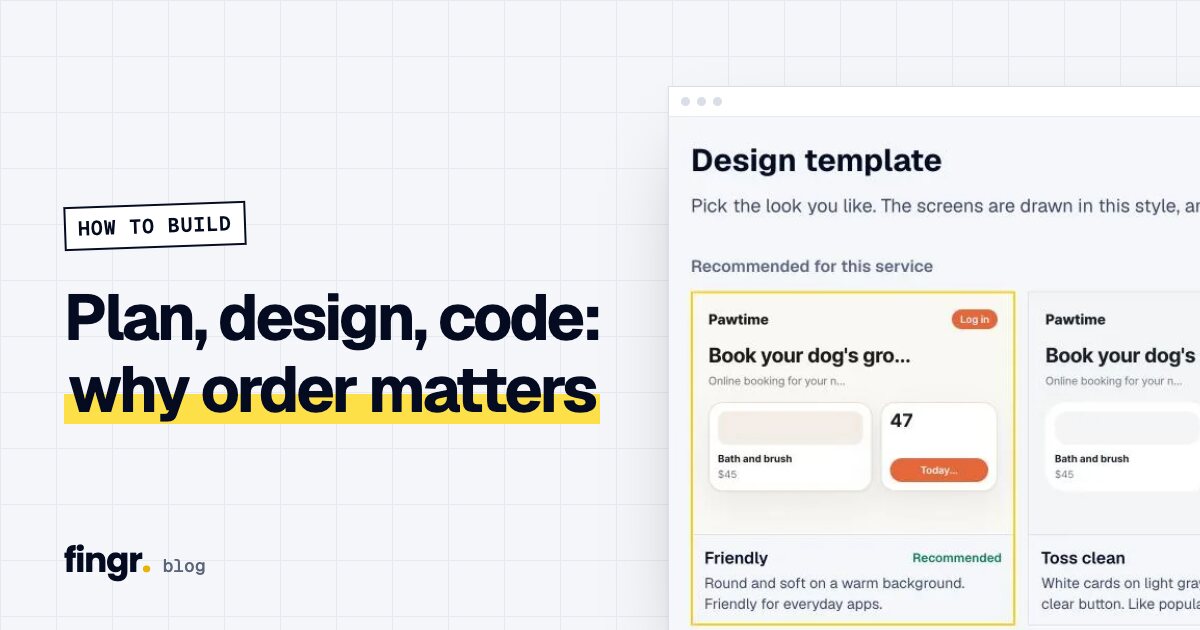
- Describe your idea and answer a few questions. fingr suggests the features and screens you need, and you choose a design template from several styles.
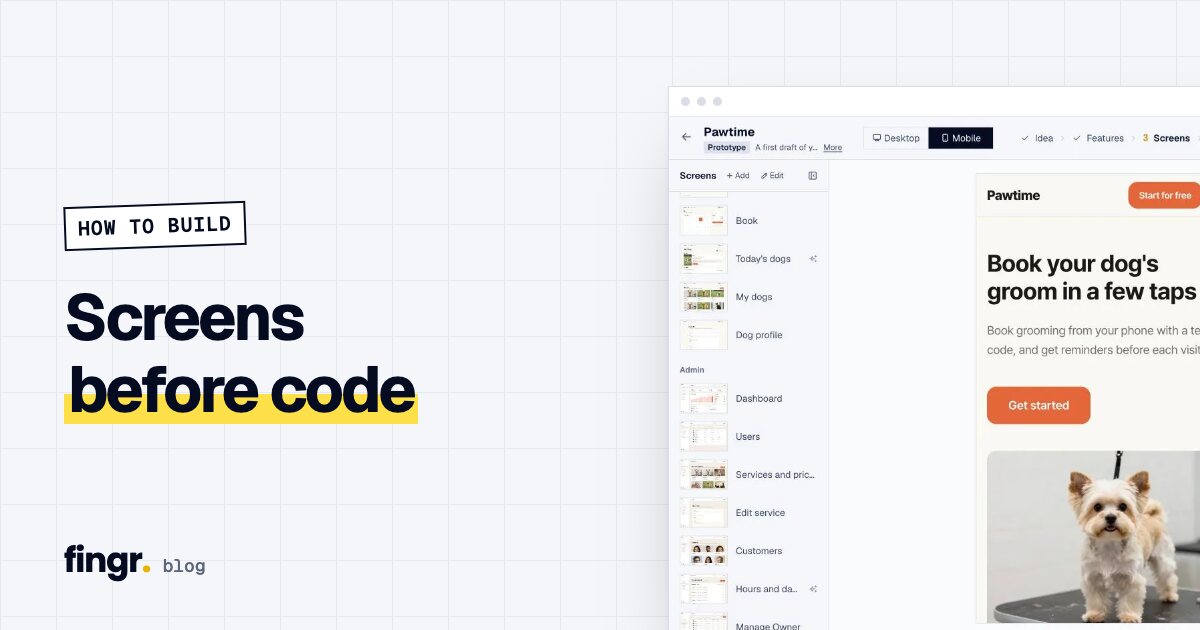
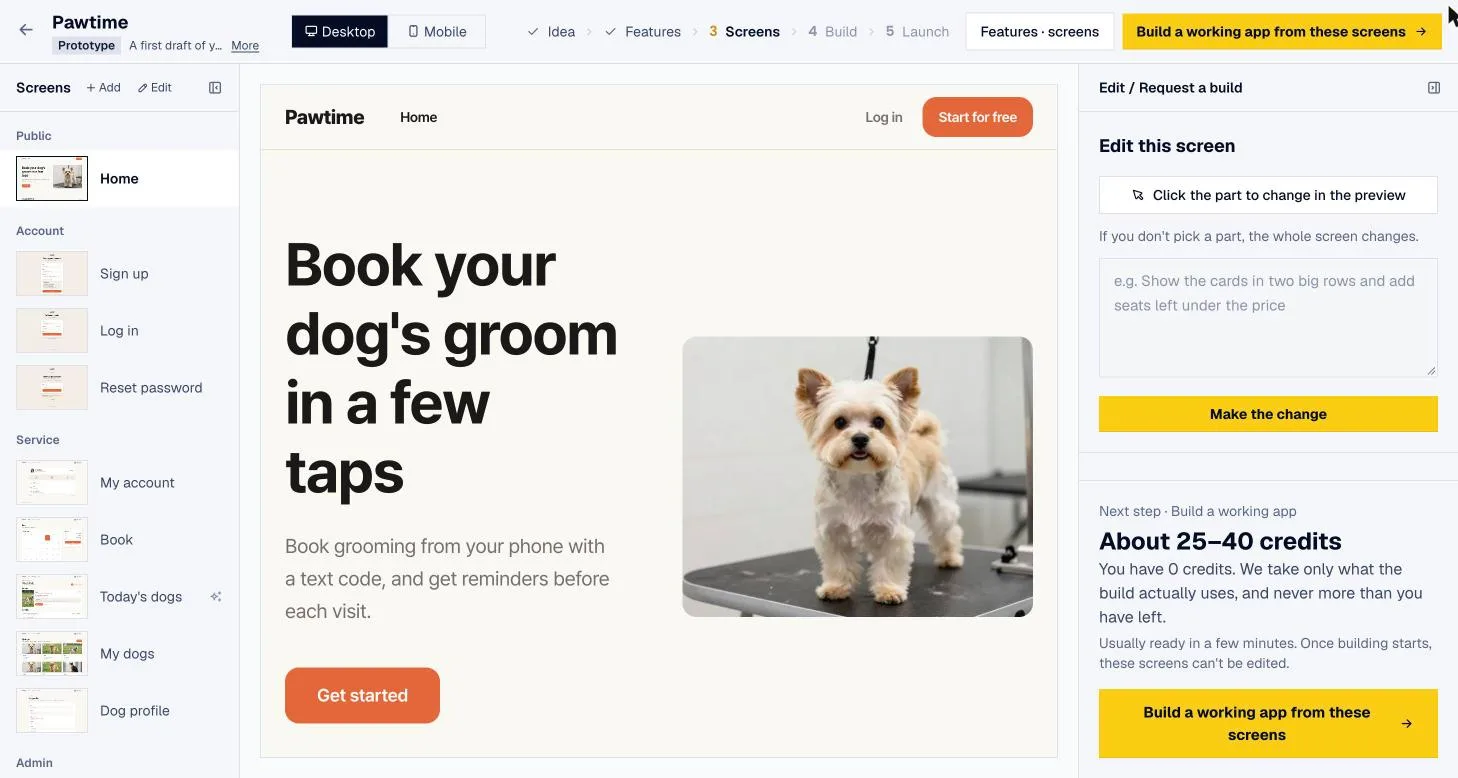
- Real screens appear. You change wording, layout, colors and fonts while looking at them, and add screens you need. You can get this far without even creating an account.
- When you're happy, click "Build the real app with this design." fingr builds a working web app that follows your edited screens, colors and fonts, with sign-up, login, saved data and payments. It usually takes a few minutes, and an admin area is included from the first version even though you didn't design one.
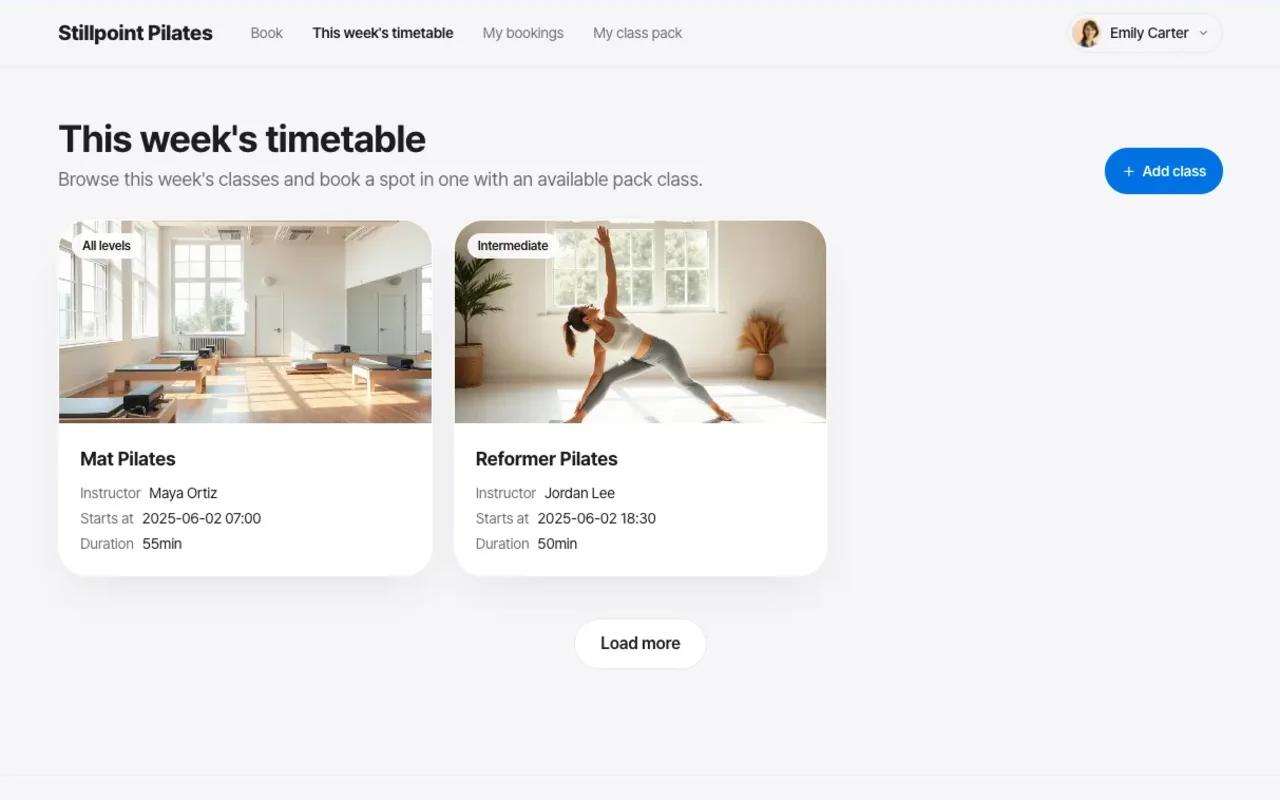
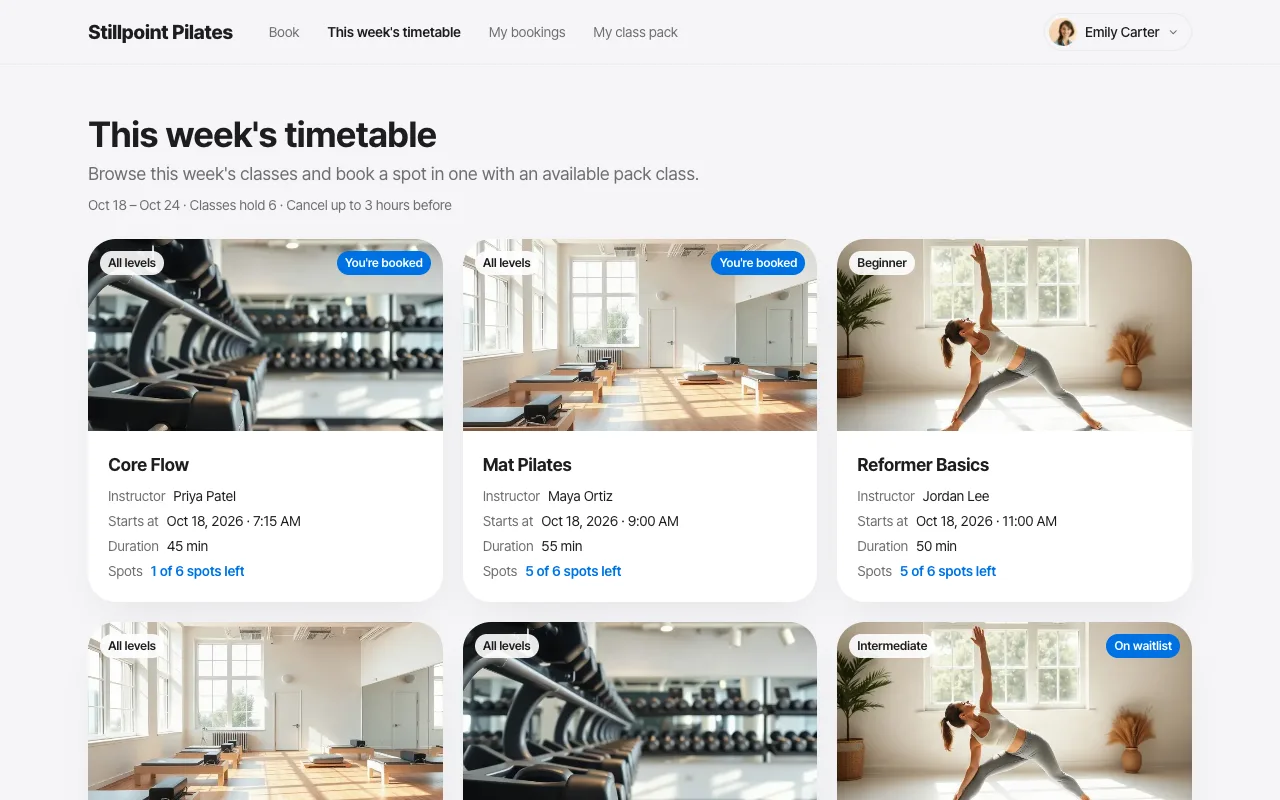
Since nobody redraws your screens for a handoff, "the result doesn't match the design" happens far less. Spots that need photos (menu items, staff, locations) get realistic photos instead of placeholder drawings.
After the app is built, you can still request changes in plain words. Before any change, fingr shows the maximum it could cost in credits (small fix 5, medium 10, one feature 30, large feature 40), then charges only what the work actually used. Still, the cheapest place to settle the big decisions is the screen design step.
When another approach fits better
- A designer wants pixel-level control. Professional tools like Figma are the right fit. fingr's screen editing is built for non-developers making changes by looking at the result.
- You want to try dozens of screen variations in seconds. v0 and Lovable update the preview almost instantly. The final step, turning those screens into a service with data, login and an admin area, is more on you. We break down the differences in v0 vs fingr.
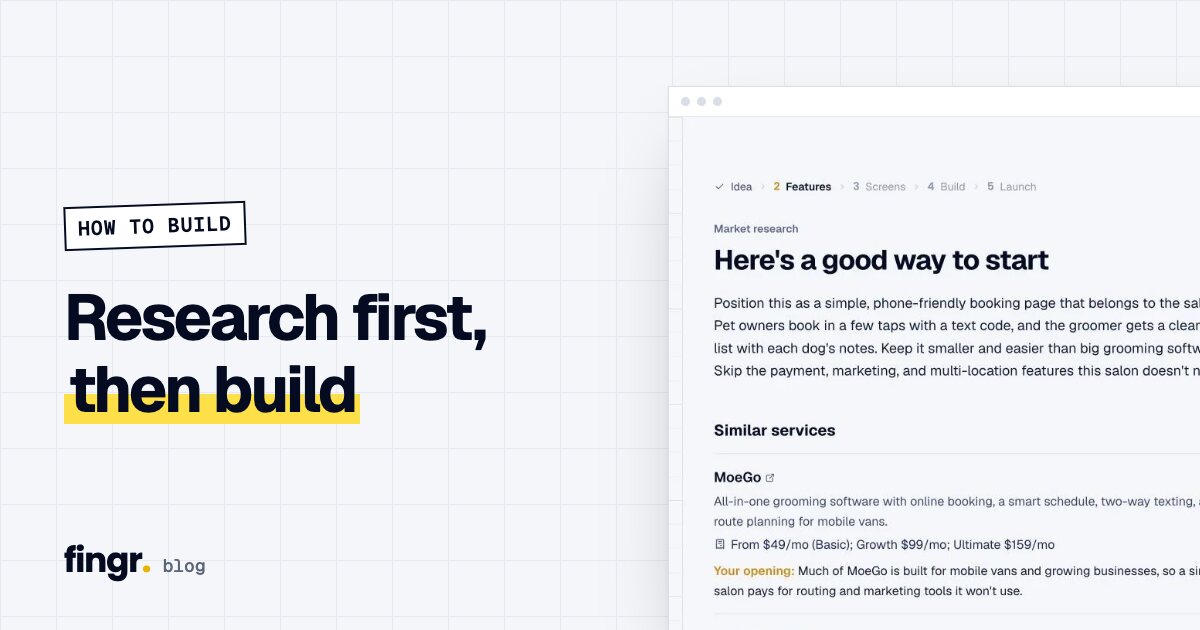
If you still need to decide what to build before designing screens, start with Do market research before you build.
Try it
Describe the app you want in a sentence or two. Within minutes you'll have screens you can edit, and once they look right, fingr turns them into the real app. You can build one app with free credits, no credit card needed. Start with the screens.
FAQ
What is a prototype?
The screens of your app before they actually work. Buttons, text, layout and colors look real, but nothing is saved and no payments go through yet. It exists so you can look at it and change it.
Why does prototyping lower costs?
It moves the moment you say 'that's not what I meant' to before development. Before development you change one screen. After, you're changing data, permissions and every connected screen.
What should a prototype settle?
The list of screens and how people move between them, what each screen shows, colors and fonts, and how everything looks on a phone.
Does a fingr prototype become the real app?
Yes. After editing the screens, click 'Build the real app with this design' and fingr builds a working web app that follows those screens, colors and fonts, with sign-up, saved data and payments.
Start your app with one sentence
Answer a few questions, see the screens first, then turn them into a real app. You can build one app with free credits.